Edit, categorize and tag transactions
Fix a description, put a transaction in the right category, and use tags to group spending that cuts across categories.
Updated Jul 30, 2026
On this page
Categories are what make budgets and spending reports work — an uncategorized expense still counts in your totals, but it can't be measured against a limit. Tags are the second axis: labels that cut across categories, like a holiday or a set of reimbursable costs.
Open a transaction
- Open Transactions.
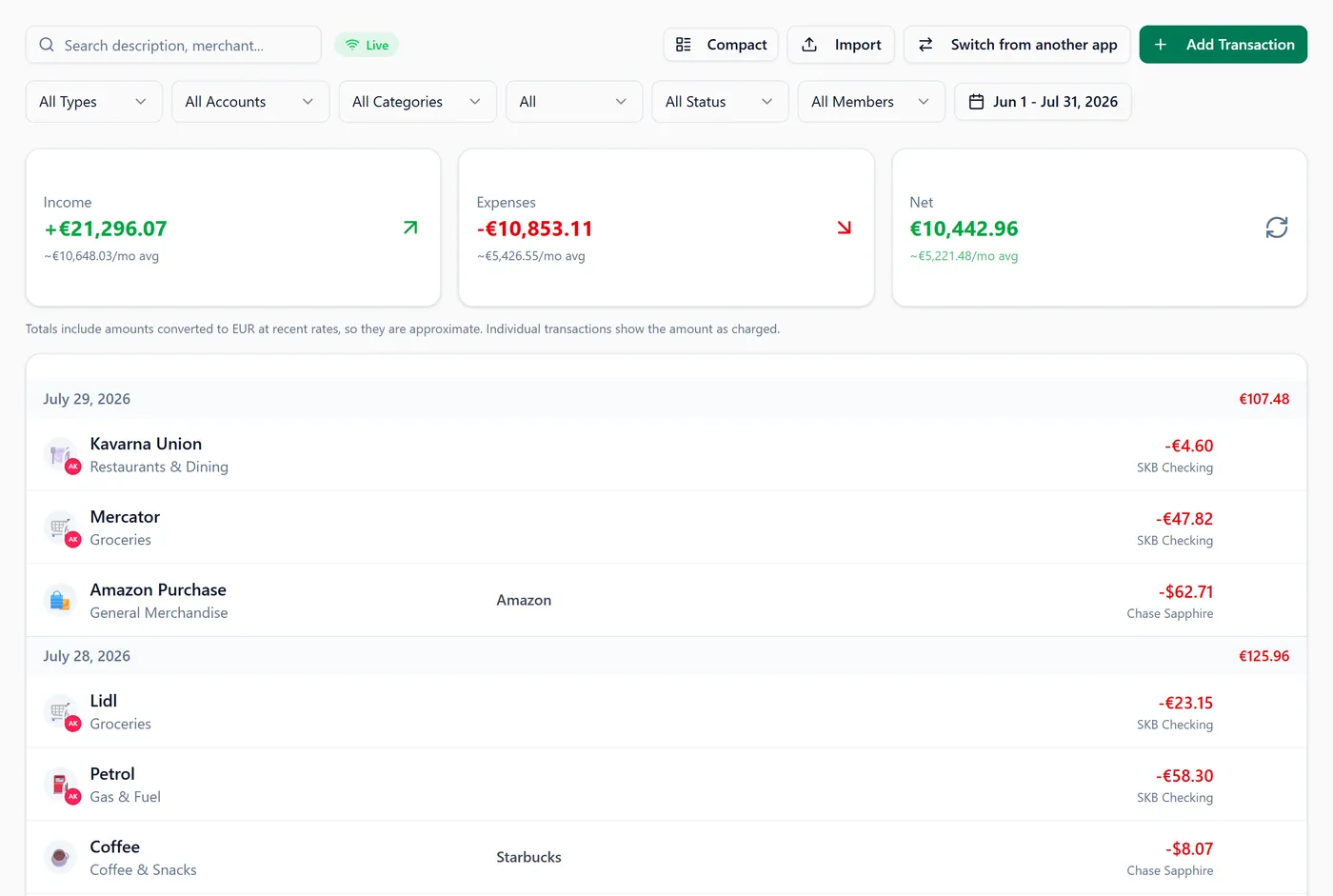
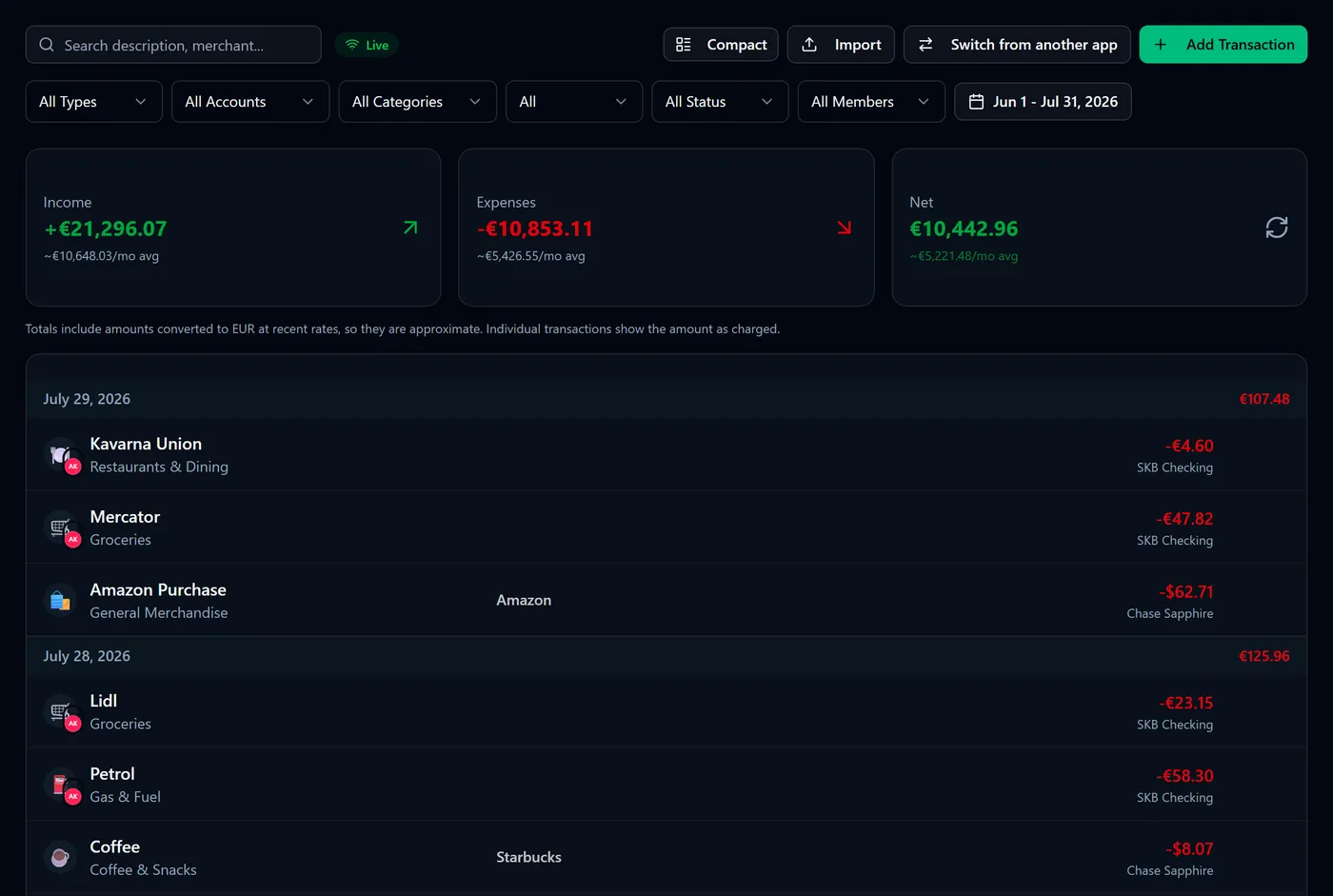
- Select the transaction's row.
You'll see a panel with the full detail — amount, account, category, date, merchant, notes, tags, and which budget it counts towards — plus Edit and Delete at the bottom.
Change the category
- Open the transaction and select Edit.
- Select the Category field.
- Search for the category you want, or create a new one from the same box.
- Select Save Changes.
You'll see the transaction move into that category, and any budget on it update immediately.
Note: transfers between your own accounts have no category — moving your own money is neither income nor spending, so the field is hidden for them.
Add tags
- Open the transaction and select Edit.
- Select the Tags field.
- Start typing to search your existing tags, or create a new one.
- Select Save Changes.
You'll see the tags on the transaction's row and in its detail panel.
Tags are worth using where a category would be wrong: "holiday-2026" spans groceries, fuel and restaurants, and you want the total without distorting your categories. Manage the full list under Settings → Finance → Tags.
Find what needs categorizing
The filter row above the list narrows things down by Type, Account, Category, Recurring, Status and date range, and the search box matches descriptions and merchants. Clear filters resets them.
Two quick routes to the work that matters:
- Set the Category filter to uncategorized to work through everything unfiled.
- On the Budgets page, the Spent tile shows how many uncategorized transactions the month has and links straight here with the month already applied.
Tip: the Status filter separates Confirmed transactions from Expected ones — bills generated from a recurring template that haven't happened yet.
Let rules categorize for you
Fyncora can apply your own rules to new transactions as you create them:
- Open Settings → Finance → Rules and create rules that match on a transaction's details.
- Open Settings → Finance → Preferences and switch Auto-Categorize on.
A rule only ever fills a category that is empty — it never overrides a category you chose yourself, and it never touches transfers.
Note: rules run on transactions created in the web app. They don't sweep over your existing history or rows arriving from a CSV import — categorize those from the list above, or during the import preview.
Deleting
- Open the transaction and select Delete.
- Confirm when asked.
Warning: deleting a transaction is permanent and adjusts the account's balance by that amount. There's no undo.
Warning: deleting a category doesn't delete its transactions — they stay, and become uncategorized. That means they drop out of any budget on that category while remaining in your spending totals.
FAQ
Can I categorize several transactions at once? Not currently — categories are set one transaction at a time. Rules are the way to avoid repeating the same choice on new transactions.
Does changing a category rewrite history? It changes which budget and which part of the spending report that transaction belongs to, for the month it happened in. The amount, date and account are untouched.
Can I change which account a transaction is on? Yes, from the Edit dialog. Both accounts' balances are corrected.
Why does an amount show in a different currency from my totals? Because it's recorded on an account in that currency. Single amounts always show as they were charged; only totals convert. See How multi-currency works.
Was this helpful?