Manage accounts and account types
Edit, hide, group and delete your accounts — and pick the type that makes your net worth come out right.
Updated Jul 30, 2026
On this page
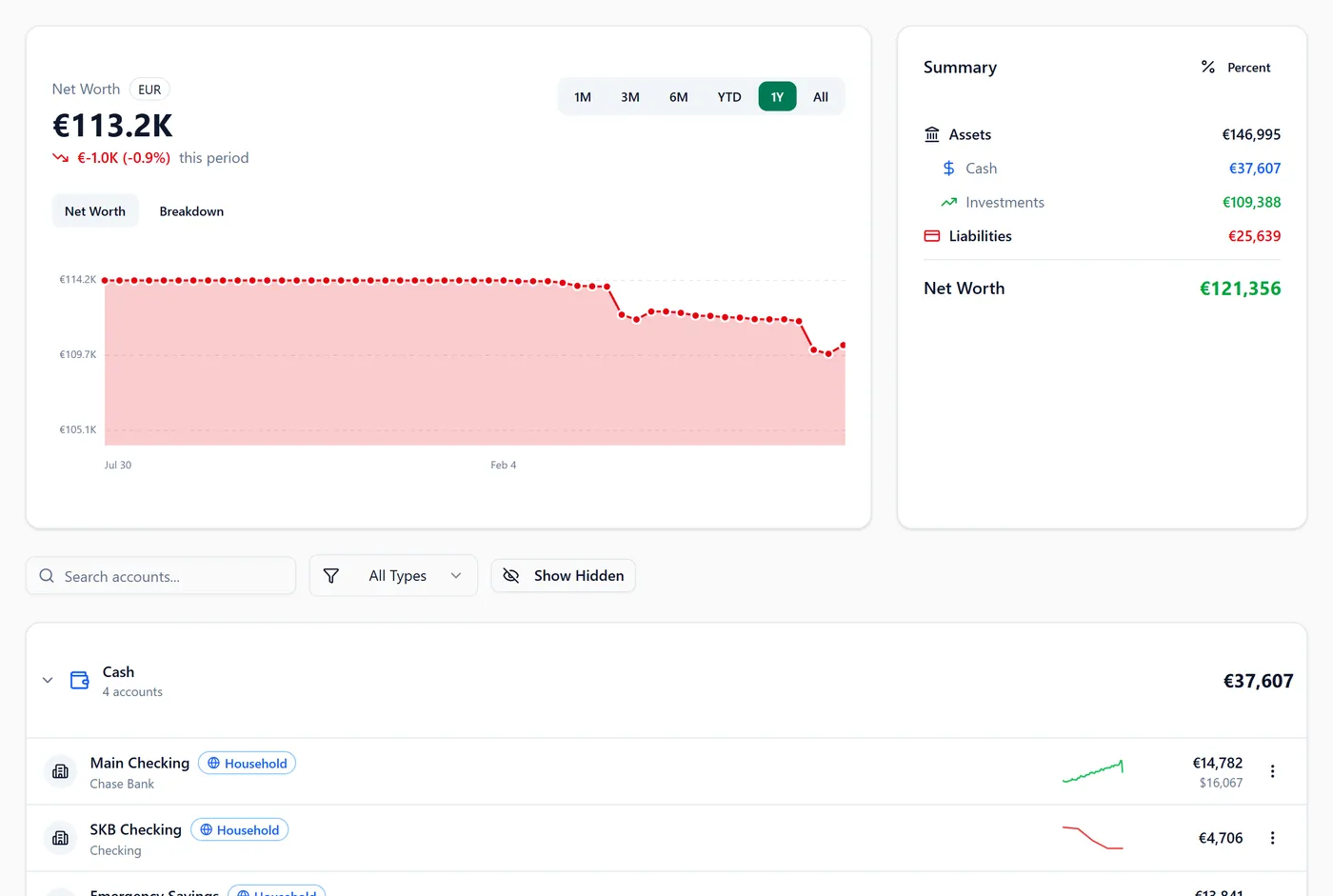
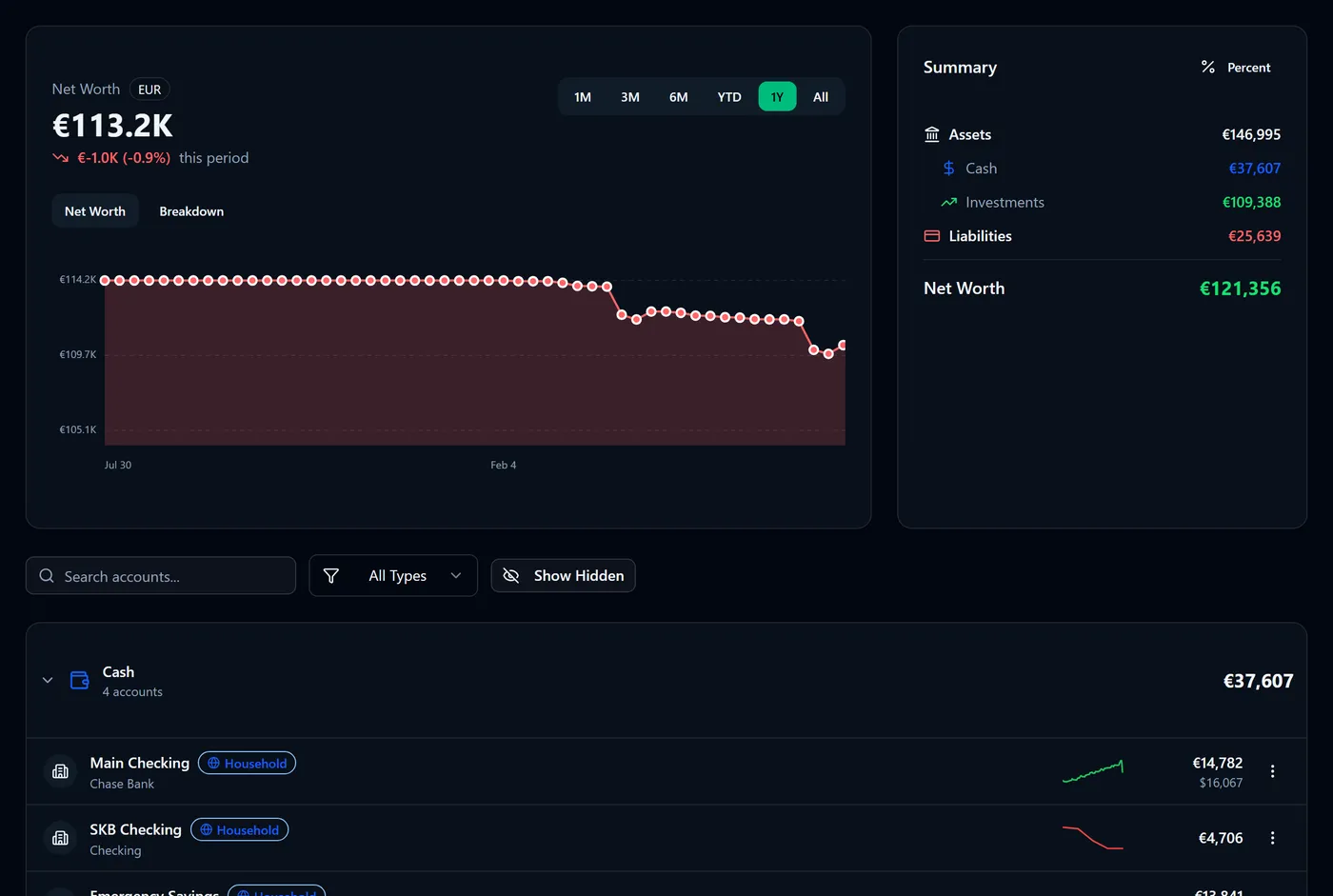
The Accounts page is the ledger of what you own and what you owe. Every account you add lands in one of four groups, and the group is decided entirely by the type you gave it.
How accounts are grouped
| Group | Account types |
|---|---|
| Cash | Checking, Savings, Cash |
| Investments | Investment |
| Liabilities | Credit Card, Loan, Mortgage, Other Liability |
| Other Assets | Real Estate, Vehicle, Other Asset, Other |
Each group header shows its own total, converted to your base currency. Individual rows show the account's own currency underneath when it differs — the amount as it really is, with the converted figure above it.
Warning: the four Liabilities types are the only ones treated as debts. This is by type, never by whether a balance happens to be negative — so a loan filed as Other Asset is added to your assets instead of subtracted. See How net worth works.
Edit an account
- Open Accounts.
- Select the menu (⋮) on the account's row.
- Select Edit.
- Change what you need — name, type, institution, currency, balance, credit limit or the toggles.
- Select Save Changes.
You'll see the row update immediately, and move to a different group if you changed its type.
Hide an account instead of deleting it
Hiding is the safe way to get an account out of your way — an old card you've closed, or a joint account you don't want on your dashboard.
- Open Accounts.
- Select the menu (⋮) on the account's row.
- Select Hide.
You'll see the account disappear from the list. Select Show Hidden at the top to bring hidden accounts back into view, where they appear dimmed with a Hidden badge.
Note: a hidden account is excluded from net worth while it's hidden, but all of its transactions and history stay exactly where they are. Unhide it and everything returns.
Delete an account
- Open Accounts.
- Select the menu (⋮) on the account's row.
- Select Delete.
- Confirm when asked.
Warning: deleting an account permanently deletes every transaction in it, along with its balance history and any holdings it held. This cannot be undone. If your aim is just to tidy up the list, use Hide instead.
The account toggles
- Include in Net Worth — off means the balance is ignored by every net-worth figure, while the account still works normally for transactions and budgets.
- Include in Budgets/Cash Flow — off means this account's transactions don't count towards budgets or cash flow. It starts off for investment, real estate, vehicle and other-asset accounts, because their movements aren't day-to-day spending.
- Hidden — removes the account from the main list, as above.
- Credit Limit — credit cards only; used to show how much of your limit is in use.
Account detail
Select an account row (anywhere other than the menu) to open its detail page, with its balance history and its transactions.
FAQ
Can I change an account's currency later? You can, by editing the account — but think twice. The amounts already recorded on it don't change, so switching currency changes what those existing numbers claim to be. See How multi-currency works.
Why does a row show two amounts? The larger one is converted to your base currency so it can be added up with everything else; the smaller one is the account's real balance in its own currency.
Why is one row's balance shown in a foreign currency? Because no exchange rate was available for it. Rather than invent a converted figure, Fyncora shows the balance in the account's own currency and leaves it out of the group total.
Can I reorder accounts? Not manually — they're grouped by type, and each group is listed together with its own subtotal.
Was this helpful?