Create your first budget
Set a limit for the category you most want to watch — about a minute, and it starts tracking straight away.
Updated Jul 30, 2026
A budget in Fyncora is a limit on one category for one period. Start with the single category you'd most like to keep an eye on — usually groceries or eating out — rather than budgeting everything at once.
Before you start: it helps to have a few weeks of transactions in, so you can set a limit from what you actually spend rather than a guess.
Create the budget
- Open Budgets and select Create Budget.
- Pick a Category.
- Enter the Budget Amount.
- Choose the Period — Weekly, Monthly or Yearly.
- Select Create Budget.
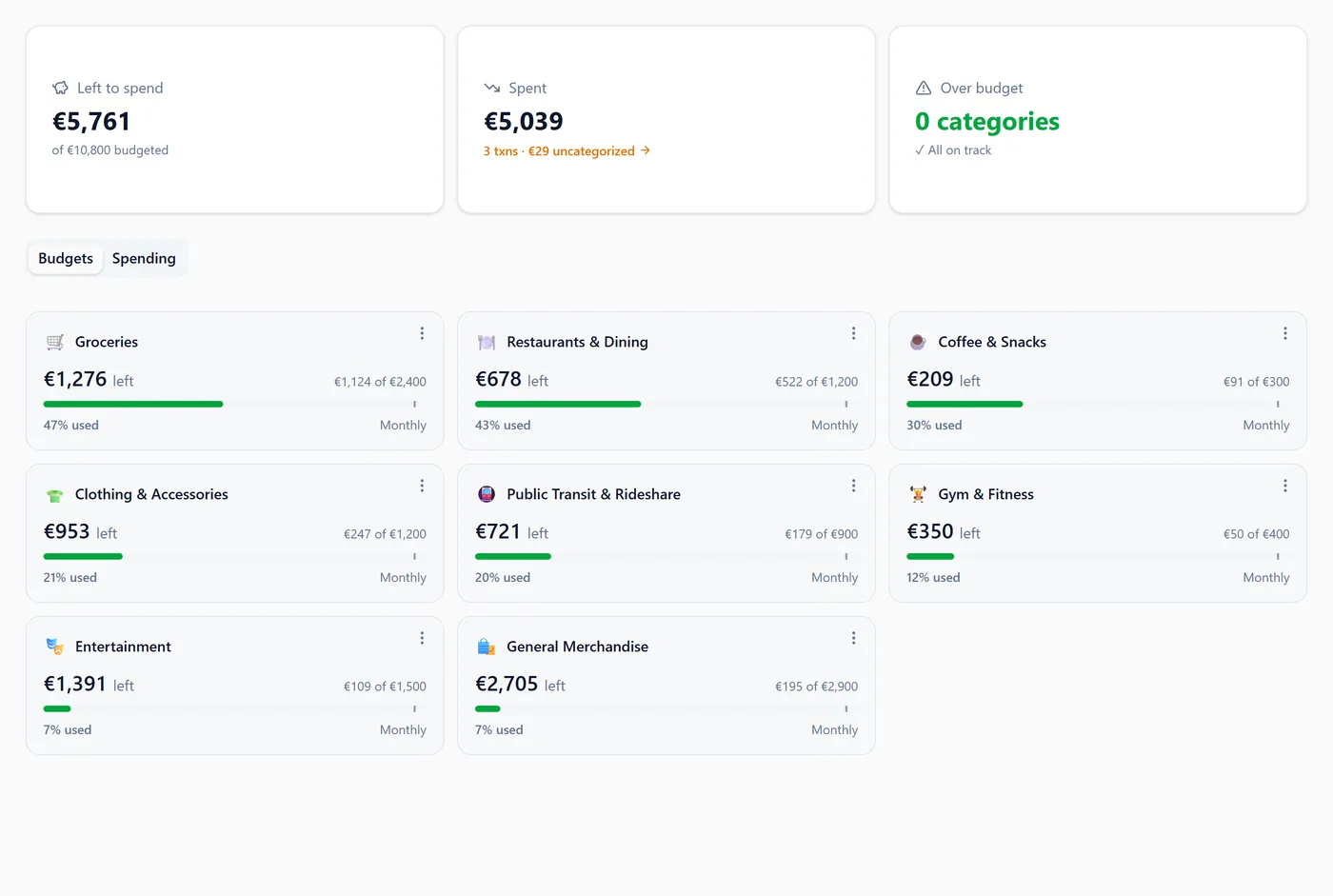
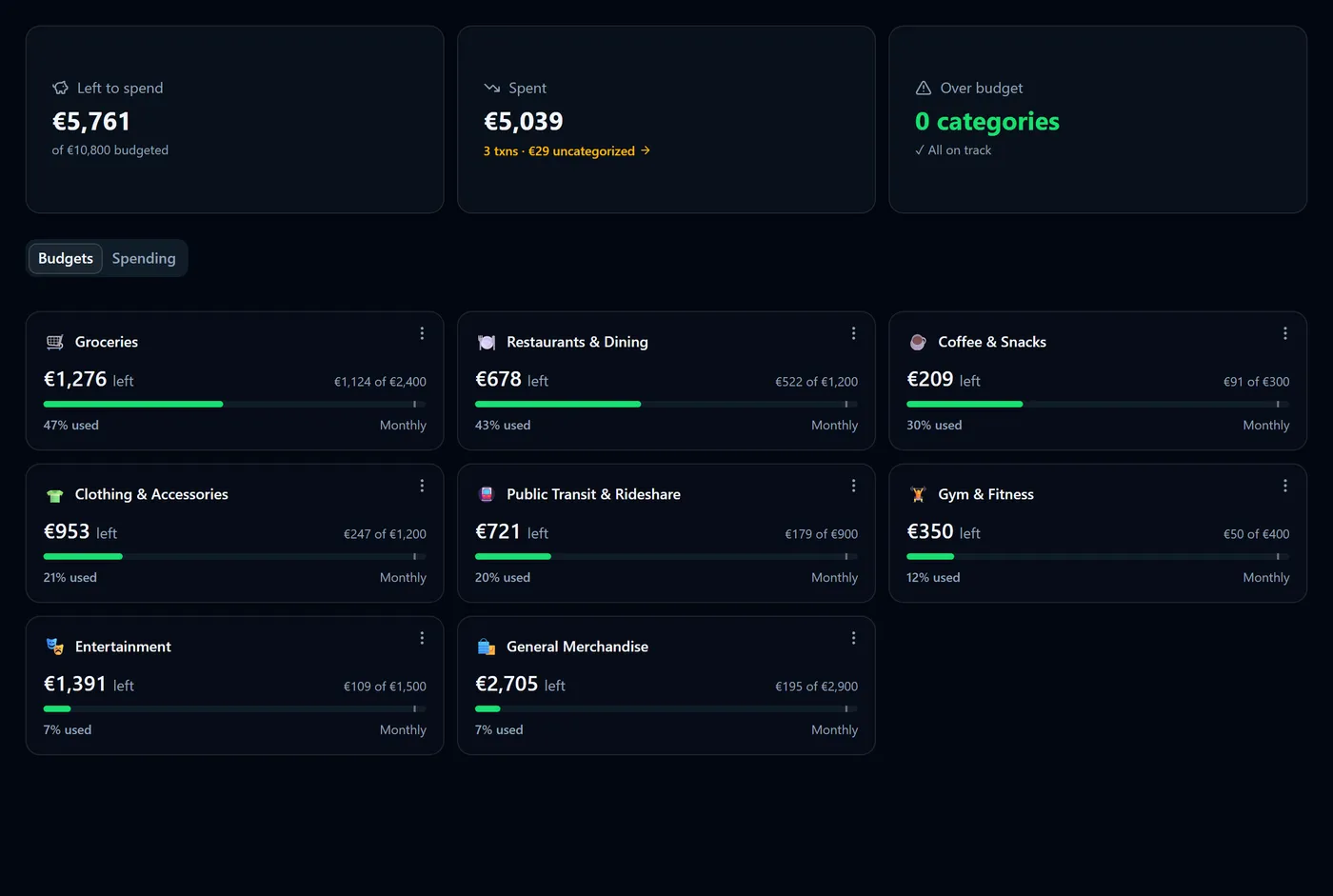
You'll see a card for the new budget showing how much is left, a progress bar, and a marker for how far through the month you are.
Tip: to pick a realistic number, open the Spending tab first and look at what that category actually cost you over the last month.
Limits and targets
The category type decides what kind of budget you get, and the picker groups them accordingly:
- An expense category creates a limit — a spending cap. The card counts down: "€185 left", or "−€54 over" once you pass it.
- An income category creates a target — an amount to reach. The card counts up towards it: "€500 to go", then "over target" once you've earned more than planned.
The dialog tells you which one you're creating as soon as you pick a category.
Periods
You can budget weekly, monthly or yearly, and Fyncora compares like with like by converting everything to a monthly equivalent on the card:
- Weekly is multiplied by 52 and divided by 12 — so €50 a week reads as about €217 a month.
- Monthly is used as-is.
- Yearly is divided by 12 — so €6,000 a year reads as €500 a month.
A yearly budget also tracks its year-to-date position, which is the figure that matters for annual costs like insurance.
Good to know
- One budget per category. Categories you've already budgeted don't appear in the picker.
- The category is fixed after creation. When you edit a budget you can change the amount, the period and its links, but not which category it belongs to. To move a budget to another category, delete it and create a new one.
- You can link a budget to a goal, which connects what you don't spend to what you're saving for.
Warning: deleting a budget does not delete any transactions — it only removes the limit and its tracking. Your spending history is untouched.
Note: transfers between your own accounts are never counted against a budget, and neither is spending in a category you haven't budgeted.
FAQ
Does the budget apply to past months? Yes. Use the month selector at the top of the Budgets page to see how any month measured up against your current limits.
What if I spend in a category with no budget? It still shows in the Spent tile and in the Spending tab — it just isn't measured against a limit.
What next? See Track budgets and pace for how to read the cards and what "ahead of pace" means.
Was this helpful?